



How to Use youtube-nocookie.com on Your Website
YouTube’s privacy-enhanced embed mode gives website owners a practical way to limit how embedded video views influence personalization. This guide explains what youtube-nocookie.com changes, what it leaves unresolved, and how to install and test it on your website.
Table of Contents
- What Is YouTube nocookie?
- What Privacy-Enhanced Mode Does and Does Not Do
- How to Use YouTube nocookie
- Cookies, Consent, and Privacy Requirements
- Use a Click-to-Load Placeholder
- How to Test Your Installation
- Troubleshooting and Player Settings
- A Practical Publishing Workflow
- Top 5 Frequently Asked Questions
- Final Thoughts
- Resources
What Is YouTube nocookie?
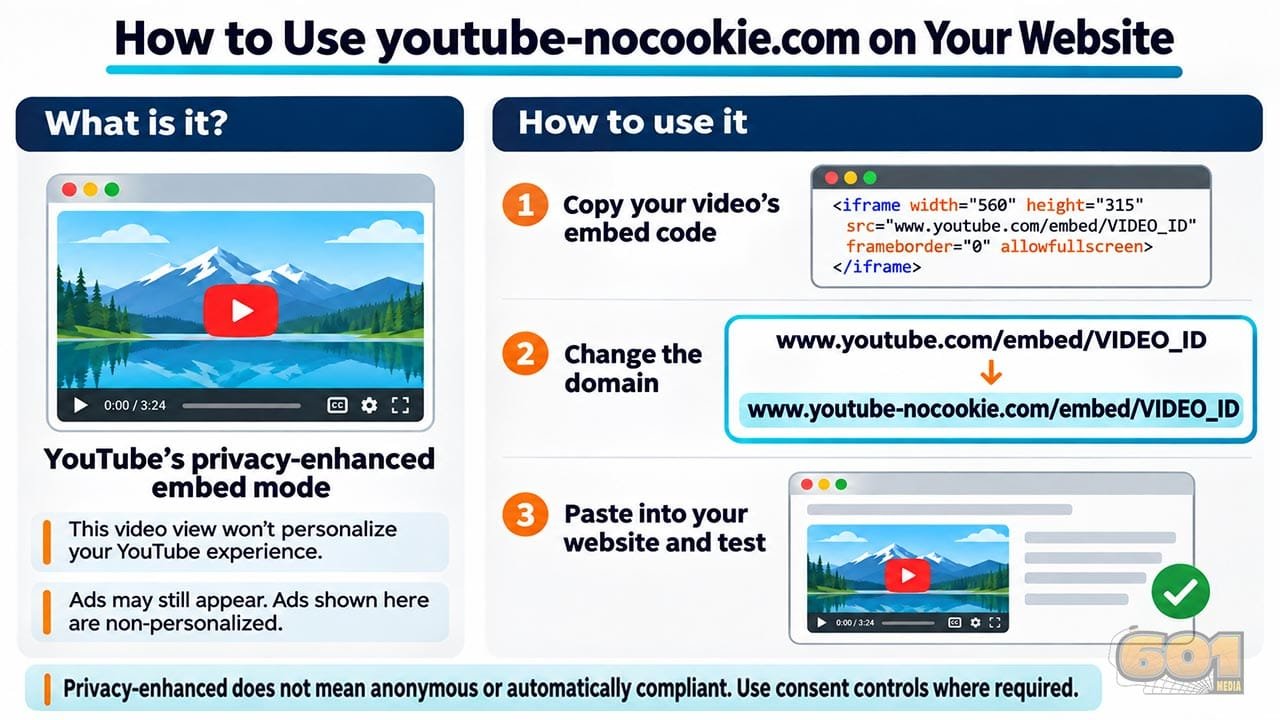
YouTube nocookie is the common name for YouTube’s privacy-enhanced embedding option. Instead of loading a video player through the usual youtube.com embed address, your website uses youtube-nocookie.com.
The video still comes from YouTube. You are not downloading it, moving it to your hosting account, or replacing YouTube’s player with an independent service. You are selecting a different mode for the embedded player.
Google’s current explanation focuses on personalization: views through this mode do not personalize the viewer’s YouTube browsing experience. Ads displayed in that player are non-personalized, and the view does not personalize advertising outside your website or app. See YouTube’s embedding guidance.
For an independent producer, instructor, or small business owner, this is a useful distinction. Someone should be able to watch a product demonstration on your website without assuming that the demonstration needs to shape their later YouTube recommendations.
However, the domain name can create expectations that the documentation does not support. Treat it as a privacy-enhanced player option, rather than a promise that every connection, storage mechanism, or data-processing activity disappears.
What Privacy-Enhanced Mode Does and Does Not Do
Three separate questions often get mixed together: Will this view influence personalization? Will the browser contact an outside service? Does this website need consent for its implementation?
Changing the player domain addresses the first question. It does not settle the other two.
An iframe is a webpage displayed inside another webpage. When you place an active third-party iframe on your site, the visitor’s browser can request material from that provider. Google explains that sites embedding YouTube can share information such as an IP address with Google. See Google’s explanation of information received from partner sites.
That is why “no cookies appeared in my browser” and “no information left the browser” are different observations. Network requests and browser storage need separate inspection.
Also, privacy-enhanced mode is not an ad-removal feature. YouTube explicitly allows for ads in this mode. Do not describe the result to clients as an ad-free player.
Nor does the domain give you full control over branding or the end-of-video experience. If your project requires a tightly controlled player for a paid course, client presentation, or sales page, define those requirements before selecting hosting.
An effective description for ordinary website visitors is simple: “This page uses YouTube’s privacy-enhanced player.” Avoid sweeping claims such as “completely anonymous viewing” unless you have independent evidence supporting the entire implementation.
How to Use YouTube nocookie
The basic conversion is a small HTML edit. Start with one page so you can confirm the result before changing a large collection of posts.
Copy and Modify the Embed Code
- Open the YouTube video on a computer.
- Select Share, then Embed.
- Copy the iframe code.
- Find the address inside its
srcattribute. - Change
www.youtube.comtowww.youtube-nocookie.com. - Keep the video ID and any settings you intend to retain.
The essential change looks like this:
Before:
https://youtube.com/watch?v=VIDEO_ID

After:
https://www.youtube-nocookie.com/embed/VIDEO_ID
If your embed dialog offers a privacy-enhanced checkbox, you can use it. Still inspect the generated address. The domain is the important detail, and manual editing avoids depending on a particular dialog layout.
Replace VIDEO_ID with the ID belonging to your video. For a watch address containing watch?v=YOUR_VIDEO_ID, use the value after v=, stopping before another parameter begins with an ampersand.
Do not paste a complete watch-page URL after /embed/. That position needs the video ID alone.
Use a Responsive Embed
Here is a starting example for a normal website page. Replace the video ID and give the frame a meaningful title:
<iframe
  width="560"
  height="315"
  src="https://www.youtube-nocookie.com/embed/VIDEO_ID"
  title="Video: Your descriptive video title"
  style="width:100%;aspect-ratio:16/9;height:auto;min-height:200px;border:0;"
  loading="lazy"
  referrerpolicy="strict-origin-when-cross-origin"
  allow="encrypted-media; picture-in-picture; fullscreen"
  allowfullscreen>
</iframe>
This example lets the frame follow its container’s width while normally keeping a widescreen shape. The minimum height accommodates YouTube’s documented minimum player viewport of 200 by 200 pixels; the containing column must also remain at least 200 pixels wide. Very narrow layouts may therefore depart from an exact 16:9 shape. Check the actual result on a phone.
The title identifies the embedded content for assistive technology. Use a description such as “Video: Setting up a home recording space,” rather than repeating a vague label like “iframe.”
The loading attribute requests deferred loading when the browser considers it appropriate. It is a performance aid, not a consent control: the browser may load the player without a click.
The referrer policy is intentional. YouTube’s embedded-player requirements recommend this policy so the player receives appropriate identification.
This code is an ordinary active embed. If you need to withhold YouTube connections until a visitor makes a choice, use the approach described below instead of inserting it immediately.
Add It to WordPress
In the WordPress block editor, add a Custom HTML block and paste the iframe there. Preview the page, then inspect the published result.
A dedicated YouTube block, an automatically converted video URL, or a page builder’s video element may generate its own markup. Do not assume it will preserve the domain you intended. Inspect what the browser actually receives.
With a page builder such as Avada, use an element that accepts HTML, or a documented privacy setting if the installed version provides one. The test remains the same: locate the resulting iframe and check its source address.
Some WordPress permissions or security configurations may strip iframe markup. If your code disappears after saving, check the editing account and site configuration before repeatedly pasting the same snippet.
Clear any relevant page cache after making the change. Then open the public page while logged out. An editor preview and a cached visitor page can show different versions, which makes troubleshooting unnecessarily confusing.
Cookies, Consent, and Privacy Requirements
Using youtube-nocookie.com does not automatically establish GDPR, ePrivacy, or UK privacy compliance. A domain substitution cannot assess your audience, other scripts, storage purposes, disclosures, or legal obligations.
Be equally careful with the opposite blanket statement: that every embedded video everywhere always requires exactly the same banner. Requirements depend on the relevant law and the implementation.
The UK Information Commissioner’s Office explains that storage and access rules extend beyond cookies. Its current guidance also discusses feature-led consent: an informed interaction with a feature may matter, while storage beyond what is necessary to provide requested content may need consent. Transparency remains important. See the ICO’s guidance on managing consent in practice.
For publishers, the practical task is to establish what your website actually loads and why. Where prior consent is required, configure the site to hold the relevant content until that consent exists. A notice that appears after the player has already loaded does not undo the earlier request.
Explain the video provider and the consequence of activating the player in clear language. Keep that explanation consistent with the behavior of your consent controls and privacy notice.
This section describes implementation considerations, rather than certifying any particular website. For a site-specific legal determination, obtain advice covering the jurisdictions and processing involved.
Use a Click-to-Load Placeholder
A placeholder lets you separate the page’s initial display from loading the third-party player. Think of a local preview card with a short explanation and an activation button.
Before activation, the page contains your own text and preview asset. After an informed choice, your implementation inserts the privacy-enhanced iframe.
For example, a card might say: “This video is provided by YouTube. Loading it connects your browser to Google’s video services.” The button could say “Load YouTube video.” Match the wording and consent behavior to your actual requirements.
Do not treat an ordinary play icon as sufficient explanation by itself. Visitors need to understand the choice, especially when the button is also intended to collect consent.
The preview image needs attention too. If your placeholder fetches its thumbnail from a Google-hosted address immediately, it still initiates an outside request. Use an appropriate image hosted on your own site when your goal is to avoid that connection before activation.
Review other page resources, including player scripts and connection hints. A placeholder cannot prevent a separate plugin from contacting YouTube elsewhere on the same page.
A consent-management tool can help coordinate this behavior across a site. Configure and test its YouTube handling rather than assuming its default settings cover your implementation. Check what happens after refusal, acceptance, and withdrawal of a previously saved choice.
For visitors who decline, keep the surrounding article useful. Provide a written explanation or transcript where appropriate. A direct link to watch on YouTube can be an alternative, clearly identifying that it opens an external service.
How to Test Your Installation
Testing should answer specific questions rather than produce a general impression that the page “looks private.” Use the published page and keep a short record of what you observe.
- Start with a fresh browser context. A separate test profile helps distinguish this page’s activity from previous browsing. Record relevant privacy settings and extensions.
- Open developer tools before loading the page. In Chrome, use the Network panel and reload. Preserve the request log if you need to compare stages.
- Inspect the iframe. In the Elements panel, confirm that its
srcuseswww.youtube-nocookie.com. For a blocked placeholder, confirm that the live player has not been inserted yet. - Review outgoing requests. Look for YouTube and Google-related destinations, including thumbnail and playback resources. The embed domain is not necessarily the only hostname involved.
- Review browser storage separately. Check the Application panel’s cookies and other storage areas. Do not infer the absence of network traffic from an empty cookie listing.
- Repeat after each choice. Compare initial load, refusal, activation, playback, and a later page reload. Confirm the behavior matches the controls’ wording.
Then test usability: play and pause, keyboard navigation, captions where available, fullscreen, and the mobile layout. A technically correct address is only one part of a working installation.
Treat your observations as evidence about that browser session. They are not a universal guarantee about every visitor, future player update, or unrelated script on the website.
Troubleshooting and Player Settings
Error 153 or a Player That Will Not Load
YouTube identifies error 153 with missing HTTP Referer information or equivalent client identification. Avoid referrer settings that suppress it. Test within a real webpage served over HTTP or HTTPS, rather than opening the embed address directly. See the official player error reference.
If playback still fails, check the browser console, security policy, consent blocker, firewall, and video restrictions. Change one item at a time. Do not remove every protection simply to see whether the video starts.
Autoplay and Related Videos
Privacy-enhanced mode does not inherently prohibit autoplay. YouTube documents an autoplay parameter, although browser restrictions can affect playback. Autoplay also conflicts with a workflow intended to wait for visitor activation, so leave it off for this guide’s setup.
Also, rel=0 does not eliminate related videos; it restricts them to the same channel. The old modestbranding parameter has no effect. These details are documented in YouTube’s player parameters.
Do not add old parameters from tutorials without checking what they currently do. Each extra option should support a specific requirement you can test.
A Practical Publishing Workflow
For a small business website, begin by listing where videos appear: posts, landing pages, reusable layouts, sidebars, and page-builder templates. A single template change can affect many pages, while a pasted iframe may need an individual edit.
Choose one representative page and implement the complete approach there. Check its domain, consent behavior, responsive layout, and playback. Once that page works, use it as your reference for the remaining pages.
Keep a record of which tool creates each embed. Otherwise, a later editor may paste a watch URL into a different block and accidentally restore a standard player.
For content-heavy pages, consider whether every video needs an active player immediately. Local preview cards can keep a collection understandable while letting visitors choose what to load. Evaluate performance on your actual site rather than promising a particular speed improvement.
Finally, revisit the setup after changes to your theme, page builder, consent system, or video plugin. Recheck a sample page after major updates. Privacy behavior is a property of the working page, not merely the code you originally pasted.
Top 5 Frequently Asked Questions
1. What is YouTube nocookie?
It is YouTube’s privacy-enhanced embed option, using youtube-nocookie.com for the player address. It limits how the embedded view is used for personalization.
2. Does YouTube nocookie mean no data reaches Google?
No. Loading an external video player involves network communication. Review outgoing requests and browser storage separately, and do not equate an empty cookie list with no data sharing.
3. Can privacy-enhanced YouTube embeds show ads?
Yes. Google says ads shown in this mode are non-personalized. The mode does not promise ad-free playback.
4. How do I use youtube-nocookie.com in WordPress?
Place a YouTube iframe in a Custom HTML block and change its source domain to www.youtube-nocookie.com. Keep the video ID, preview the published page, and confirm that the resulting iframe retains the intended address.
5. Is YouTube nocookie automatically GDPR-compliant?
No. Compliance depends on the actual implementation and applicable requirements. Assess data processing, storage, transparency, and consent rather than relying on the domain name alone.
Final Thoughts
The most useful takeaway is that selecting the player and deciding when to load it are separate decisions. The privacy-enhanced domain addresses the player’s personalization behavior. A correctly implemented placeholder or consent system controls when the browser begins loading that player.
Use both decisions deliberately. Make the domain change, explain the external service clearly, and test the complete visitor experience. Where prior consent is required, confirm that refusal actually prevents the relevant loading behavior.
For creators and small business owners, this is manageable work. Start with one page, verify it, and apply the same reviewed approach across your site. Describe the result accurately: a privacy-enhanced YouTube embed with behavior you have checked, rather than a broad promise of anonymous, ad-free, or automatically compliant video.
Resources
- YouTube Help: Embed videos and playlists — privacy-enhanced mode and installation.
- Google Developers: YouTube embedded player parameters — supported settings and deprecated options.
- Google Developers: Required minimum functionality — embedded-player identification and referrer guidance.
- Google Developers: IFrame Player API errors — playback error definitions.
- Google: Information from sites and apps using its services — data-sharing context.
- ICO: Cookies and similar technologies — UK storage and access rules.
- ICO: Managing consent in practice — feature-led consent considerations.













Leave A Comment